
How to set Macgo Mac Blu-ray Player as default player
A new function called Auto Play has just been added to Macgo Mac Blu-ray Player, which means when you insert a disc into your Blu-ray drive, the player will automatically start and play. Sure it will save you some time. In order to make this whole process smooth, you better set Mac Blu-ray Player as default player on your Mac. Now I’ll tell you how to do it.
Step 1: Free download Mac Blu-ray Menu Player and install it at once

There will be watermark on your screen if you play Blu-ray with the trial version. Only 39.95 dollars for the full version of Mac Blu-ray Menu Player for now, please buy Mac Blu-ray Player with discount.
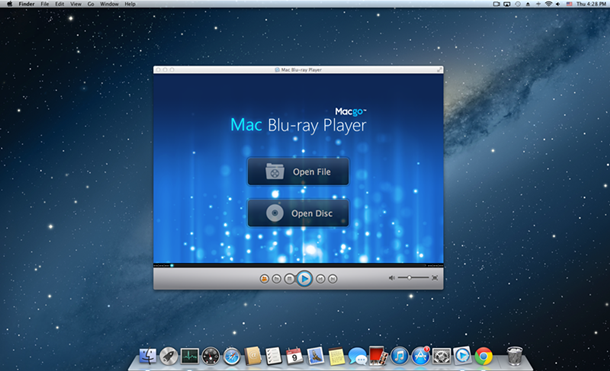
Step 2: Click “Check File Associations” under “Tools”
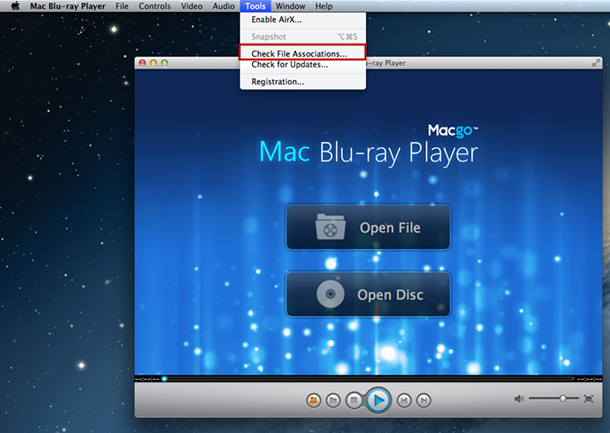
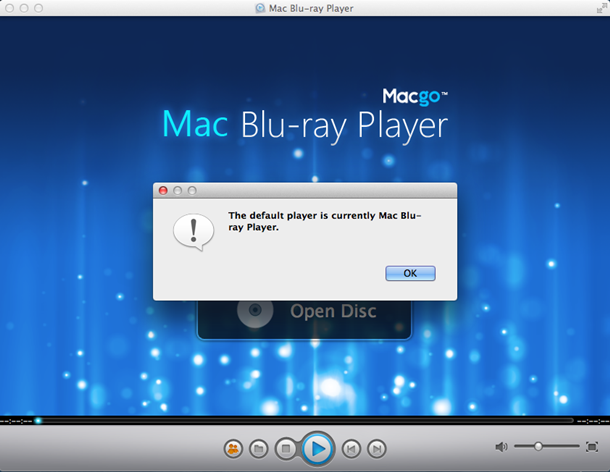
One click and Macgo Mac Blu-ray Player will be your default player. Click “OK” to continue.
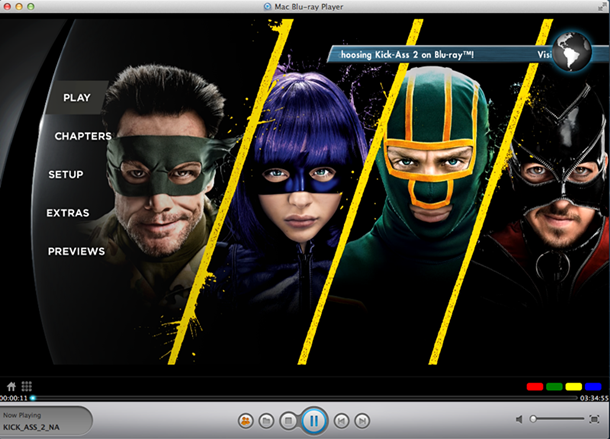
Step 3: Insert a BD and enjoy your movie
Right after you’re done with step 2, try auto playing a Blu-ray movie with this Mac Blu-ray Player software. Let the player do the work for you. And don’t forget to experience the uniqueBlu-ray Menu Mode of it, which allows you full access to native menus of many Blu-ray discs.
If you want to cancel Auto Play, it’s also quite easy to do. First, click “Preferences” under “Mac Blu-ray Player”.
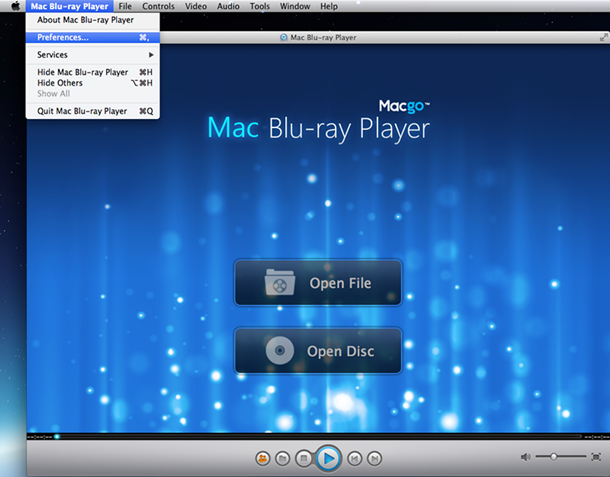
And then uncheck “Auto play when you insert disc” and click “OK”, and then Macgo Mac Blu-ray Player won’t auto play when you insert a disc.
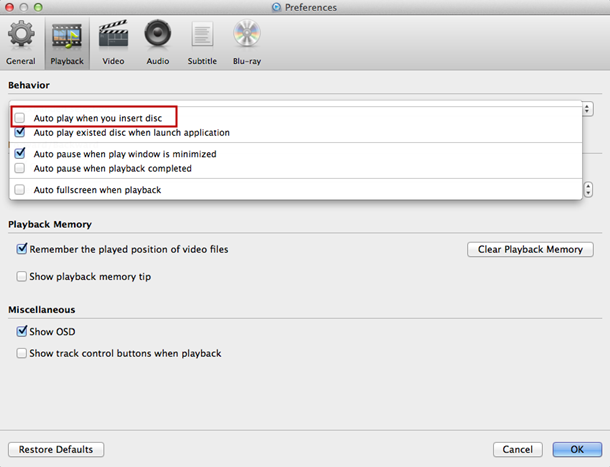
That’s everything about setting Macgo Mac Blu-ray Player as default player. Pretty easy, huh? Hope you enjoy your Blu-ray discs with this new Auto Play function.