
How to Auto Update Macgo Mac Blu-ray Player
Macgo Mac Blu-ray Player’s brand new Auto Update function was just added to the latest version. Have you tried it yet? With this function, the player will do all the update work for you. A lot of you may wonder, how does this thing work? Now let me walk you through the whole process. It’s really easy to operate.
Step 1: Free download Macgo Mac Blu-ray Player and install it

A watermark will show when you play Blu-ray with the trial version. Now the full version is on sale, for only $39.95. Please buy Macgo Mac Blu-ray Player with discount.
Step 2: Run Macgo Mac Blu-ray Player and open “Check for Updates” under “Tools”

Please be noted, this function only can be used on old versions of Macgo Mac Blu-ray Player. There should be a latest version to update.
Then a pop-up window will show up. Click the “Auto Update” button. And then the Auto Update will begin.
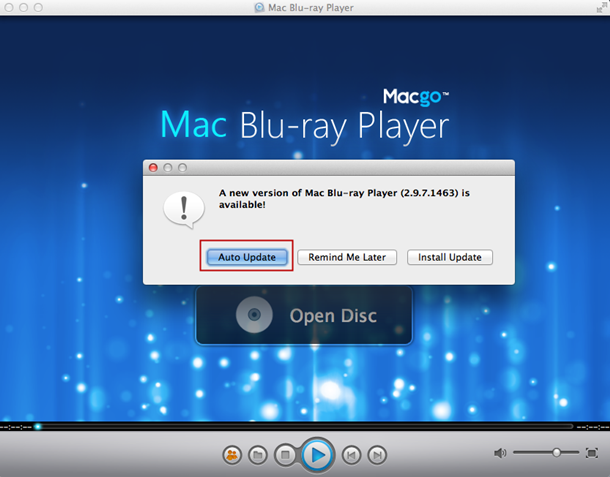
Step 3: Wait for it to complete and relaunch
Wait when Macgo Mac Blu-ray Player’s Auto Updating.
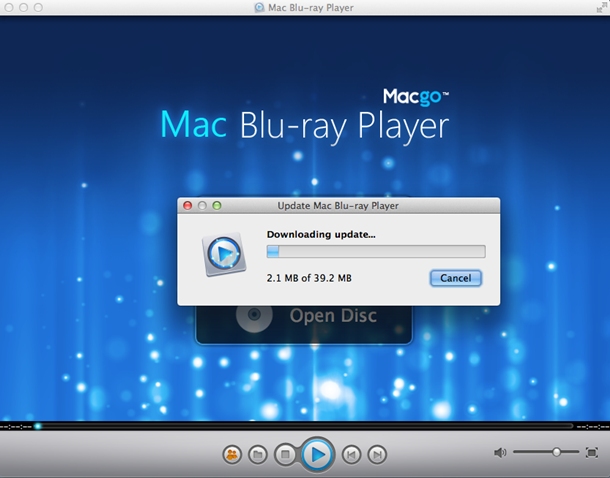
Click “Install and Relaunch” when it’s finished.
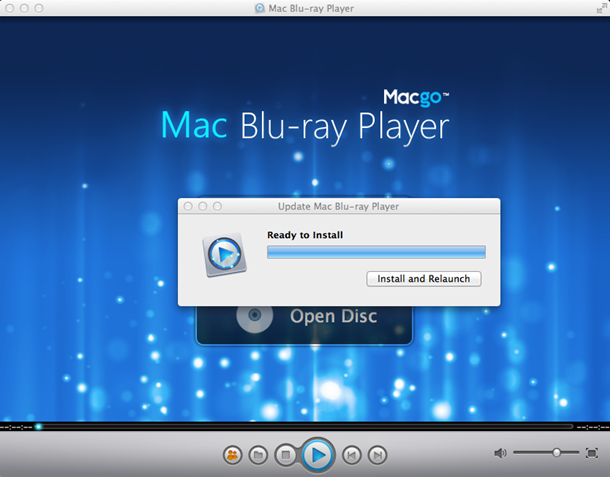
Then you’ll get the latest version of Macgo Mac Blu-ray Player.
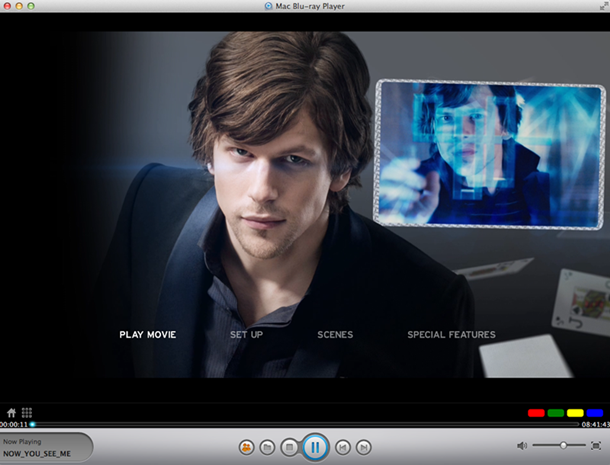
Now you can freely enjoy Blu-ray with the latest version of Macgo Mac Blu-ray Player.
Note: There should be a later version to update; hence Auto Update can’t be used on the latest version of Macgo Mac Blu-ray Player.