
Blog
Macgo Mac Blu-ray Menu Player – Brand new Blu-ray Menu feature has arrived!
11/08/2013 18:48After months of trying, Macgo team is now happy to present the new version of Mac Blu-ray Player – Mac Blu-ray Menu Player. A brand new Blu-ray Menu Mode is added to this fantastic Blu-ray player. Now two different play modes are supported by version 2.9.0. Have a little taste of Blu-ray menu in advance!
The play mode that Mac Blu-ray Player has always supported is now officially named “Quick Play Mode”, which is its default play mode. The brand new Blu-ray Menu Mode can be set by only a few steps. After that, you can enjoy lots of great Blu-ray movies with it freely. Now this feature is still under development, so it’s yet to be optimized. Be the first to try it, and the Macgo team would love your feedback on this new feature.

On Blu-ray menu you can choose play the movie directly, select scenes, or set audio and subtitles and other stuff. There are usually several audio channels, tracks and subtitles in one Blu-ray movie. You can choose whichever you like. You can also select a special scene or extras to watch first, which is really convenient. Blu-ray menu comes with the Blu-ray disc, so it always sticks to the style of the movie. So every Blu-ray menu looks unique, which is really good news to movie fans. After the disc’s loaded, Blu-ray menu will be controlled by your keyboard. For now you can only use Blu-ray menu via keyboard controls. Blu-ray movies always bring people high definition enjoyment, now Blu-ray menus will make it even sweeter.
System requirement:
OS Supported: Mac OS X 10.5+ to 10.9
CPU: Intel Core2 Duo 2.4GHz processor or higher recommended
RAM: 512MB RAM or more
250 MB of free disk space
An internal or external Blu-ray drive
USB≥ 2.0 or FireWire≥ 400
Pricing and Availability
Macgo Mac Blu-ray Menu Player is available now at $39.95. Windows version is also $39.95. $59.95 will get you the ultimate Blu-ray player suite, for both Mac and PC.
To get more information and latest discount about Mac Blu-ray Player, please link to Macgo official Facebook page:
https://www.facebook.com/MacBlurayPlayer
About Macgo
Macgo International Limited was founded in 2008; they have over ten years of experience in DVD Blu-ray video and has developed many DVD Blu-ray video tools with advanced technology. In the past ten years, Macgo has established itself as the innovative leader in video DVD Blu-ray technology by pioneering more performance enhancing technology.
Keywords of iOS Devices in 2014: Thinner, Bigger, and Lighter
11/07/2013 14:31The year of 2013 is approaching end, and Apple also puts an end to all iOS devices it released this year. Though Retina iPad mini is not public yet, insiders have turned eyes to Apple’s next year of 2014. What updates Apple would bring us then? Professionals hold that “thinner, bigger, and lighter” would fall into the keywords of iOS in 2014, meaning we will meet this device with a thinner frame, larger screen and better processing performance.
Specifically speaking, here, iOS mainly refers to the new iPhone; the lighter-frame prediction comes mainly from the release of iPad Air, and the birth of iPhone Air seems pretty natural after Apple released MacBook Air and iPad Air. As for bigger screen, rumor has it for a long time that according to media, they claim that Apple would launch a 5.0 or bigger screen iPhone next year, and a better processing performance is needless to say, for it has been a regular routine of Apple’s update each time.
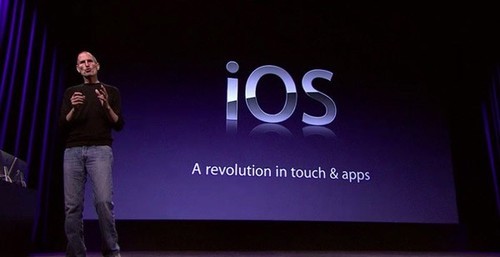
Of course, “thinner and bigger” may also become the words that could describe the iPad product line. In this year, iPad Air is already pretty thin; yet with the improvement of technology, who can be sure that next year’s new release wouldn’t be thinner than this one? Statements of a larger-sized iPad are no longer news to us, neither, for Wall Street Journal has made a prediction that Apple would launch a 12 inch iPad before it holds the conference this year.

In this year’s fourth quarter earnings conference, Tim Cook, CEO of Apple, denotes that they would start a brand new product line whose products would be different from those of the present iOS and Mac devices. According to previous predictions and disclosures, iWatch and iTV will most likely be the new products as Apple said.
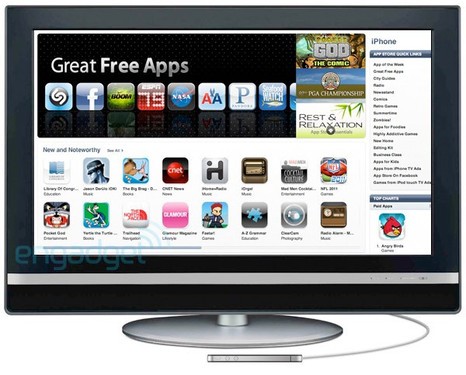
If these predictions are true, then there are a few things you need to add to your list of fun, such as a good performed player — Macgo Mac Blu-ray Player which would definitely bring you a fabulous audio-visual feast. One good thing is that currently Macgo is holding a Thanksgiving sale. For all the iPad and iPhone fans, an earlier preparation of a player would be the best way to enjoy your movie time. So what are you waiting for? Come and get one!
Find out more Thanksgiving discount on Macgo’s website:
https://www.macblurayplayer.com/mac-blu-ray-player-offer-disconut-on-thanksgiving-day.htm
A comparison of Macgo Mac Media Player and VLC Media Player
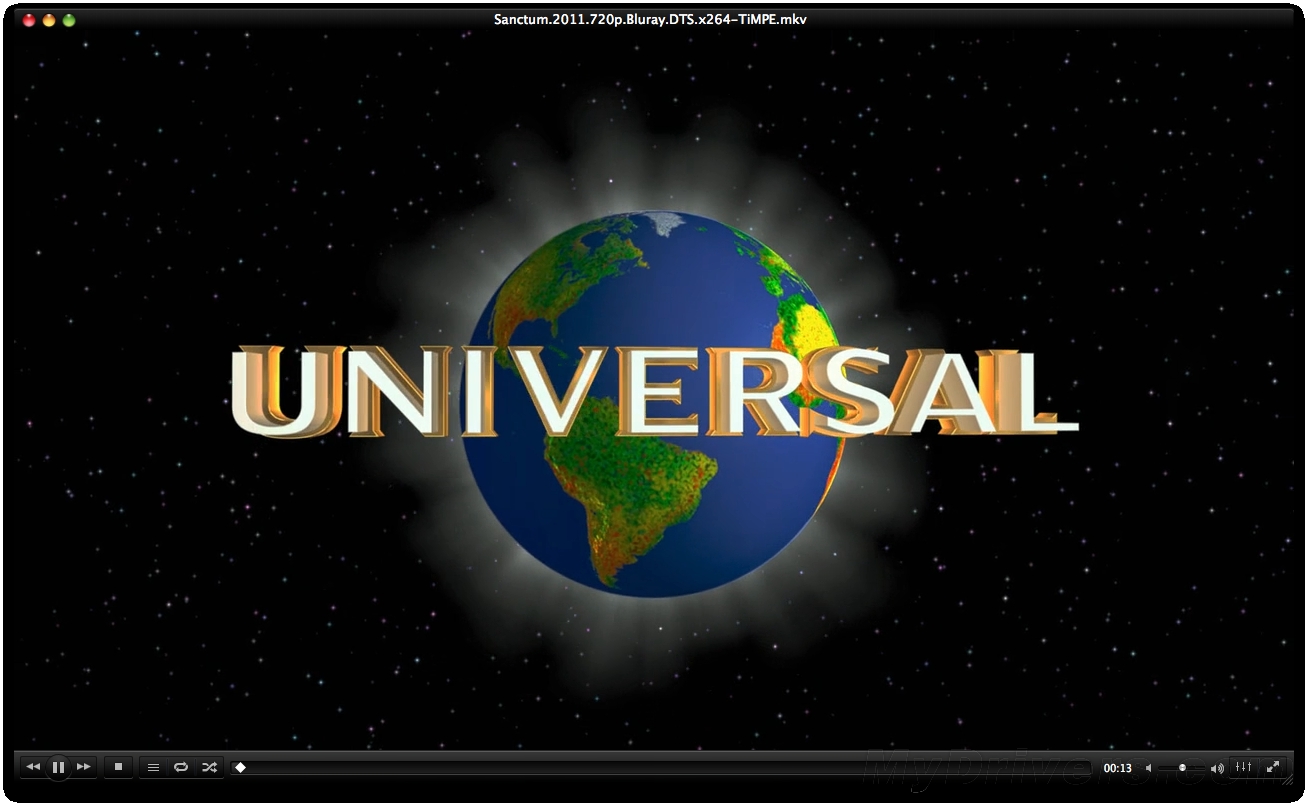
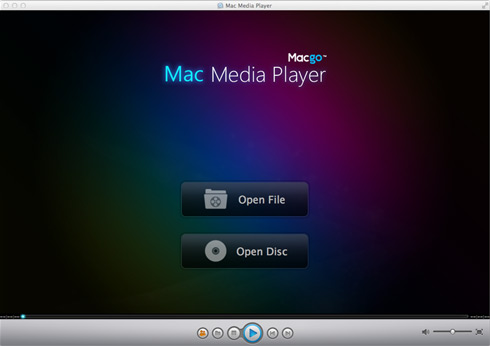
11/04/2013 16:49VLC Media Player is a popular freeware that plays most multimedia files as well as DVD, Audio CD, VCD, and various streaming protocols. It’s developed by a non-profit organization, and it has gained quite some popularity over the years. Now it has become a cross-platform multimedia player. However, if you’re interested in a media player that concentrates on Mac OS X, allow me to introduce you a powerful media player for Mac, which is named Macgo Mac Media Player. It’s specially designed for Mac OS X, which supports almost all kinds of media formats. And it’s also totally free to use. Now you may wonder what the differences are between these two. Let’s take a look together, shall we?
Media Formats
First, let’s take a look at the media formats that these two media players support. As we all know, VLC is a cross-platform multimedia player. It supports Windows, as well as Mac OS X, Linux, etc. On the other hand, Mac Media Player is only based on Mac OS X for now, which makes it possible for us to concentrate making this software almost perfect. All kinds of media formats that can be played with VLC are also perfectly supported on Mac Media Player. Such as DVD, VCD, MOV, MKV, AVI, FLV, WMV, MP4, MPEG, RMVB, MP3, WMA, AAC, AC3, etc.
Mobile Device Performance
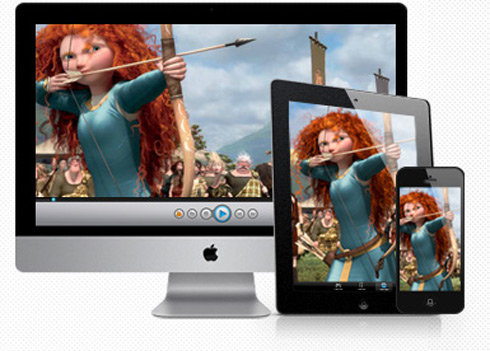
Then let’s talk about the performance on mobile devices. A unique feature of Mac Media Player is its AirX function. With the help of AirX, you can enjoy stream movies on your iOS devices. Now VLC can run both on iOS and Android, which is also impressive.
User Experience
Speaking of user experience, I think Mac Media Player has a friendlier and better looking UI, amazing ultrafast speed, easy operation as well as high definition of up to 1080p. It can play your favorite movies on Mac without any quality loss. Isn’t that all you need in a media player?
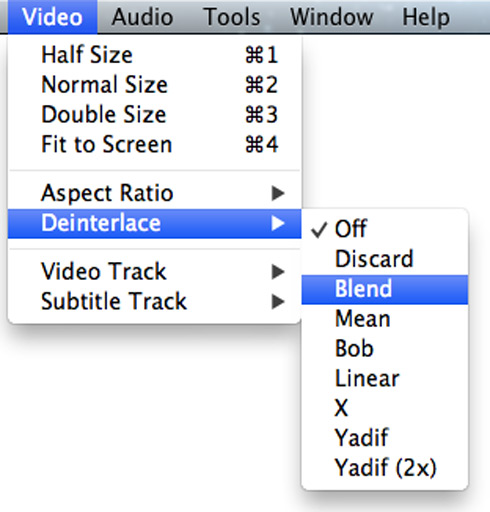
Another great feature I have to mention is that Mac Media Player software is able to upscale video files to higher quality. With the “Deinterlace” function, it is possible to improve the picture quality of some home videos to a higher level. I have to say this feature is more mature than the one VLC has.
HD Audio
What’s more amazing is that Mac Media Player is the first media player that perfectly supports DTS5.1 for Mac in the world. It can support audio output as well as pass through. Allowing full preservation of all audio tracks (such as DTS HD Master Audio), subs streams, chapter markers, and videos, Mac Media Player provides smooth audio output and offers you the ultimate home theater enjoyment. That’s something not any software can compare, you have to try it for yourself!
“Share” Function
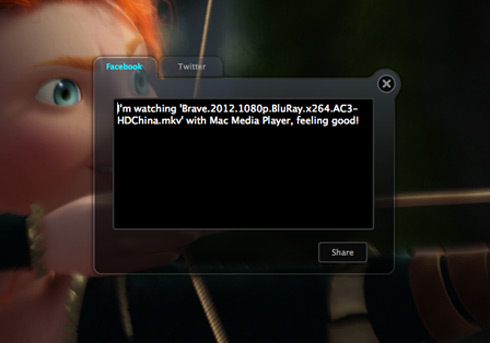
Another significant feature of this versatile media player is its “Share” function, by which you can directly recommend the movie information you’re watching or share your reviews about the movie to all your friends on Facebook or Twitter anytime and anywhere. So far this function’s still not available on VLC, so if you do enjoy sharing your fun whiling watching movies, Mac Media Player will be your best option.
Macgo Mac Blu-ray Player
Mac Media Player can’t support Blu-ray, only because it’s the lite version of Macgo Mac Blu-ray Player. You can download the trial version of Mac Blu-ray Player from Macgo official website and have a try. Trust me, you will love it. There will be a watermark on the main screen while you watch Blu-ray with this trial version. If you want it gone, you can buy its life-time version for only 39.95 dollars. And you will be able to enjoy any Blu-ray movies with it. They also have Windows version of this software, which is quite a powerful Blu-ray Player for PC! If you’re interested in them both, 15 more dollars will get you the ultimate Blu-ray Player Suite. You can enjoy Blu-ray both on Mac and PC for only 54.95 dollars! What a great deal!
You can free download Mac Media Player here:
https://www.macblurayplayer.com/user/download/Mac_Media_Player.dmg
Mac Blu-ray Player’s been just updated to the latest version 2.8.15. And it’s getting better and better day by day. Mac Blu-ray Player is certainly the kind of software you don’t want to miss!
Find out more on Macgo official website:
Macgo Mac Blu-ray player updated to Version 2.8.15
11/01/2013 16:08The world’s first and best Macgo Mac Blu-ray Player has updated to Version 2.8.15. The newest version fixed the bug that more than 100 discs had failed to be played, such as "Despicable Me 2", "Monsters University" etc.

At the same time, Macgo Windows Blu-ray Player and Free Mac Media Player are also improved with more powerful function. Here is the free download address of different product versions of Macgo.
Free download Macgo Mac Blu-ray Player
Free download Macgo Windows Blu-ray Player
Free download Macgo Free Mac Media Player
Macgo Mac Blu-ray Player can successfully play all the Blu-ray Disc, Blu-ray ISO image files and Blu-ray folders on both Apple Mac and Windows based PC, as well as on mobile iOS devices, such as iPhone, iPad, iPad mini and iPod touch(iTouch). Besides, as a piece of universal Blu-ray media player software, it perfectly free displays all kinds of other video, audio and photo formats. With Multilanguage and region free support, you could get close to Mac Blu-ray Player and enjoy your Blu-ray movie light-heartedly.
.jpg)
Don’t hesitate to free download the newest V2.8.15 to appreciate all your missed new released Blu-ray movies. "Monsters University" is opening now.
Macgo Mac Blu-ray Player – 2013 Halloween Super Scary Promotion
10/23/2013 11:56Now that the Halloween is approaching, Macgo is offering a special deal on Macgo Mac Blu-ray Player from October 16th to November 3rd for Blu-ray lovers. Enjoy some great Halloween movies at home would be a sweet family thing. Make sure you already have it or you’ll regret it.
So, now, in order to introduce this fantastic Blu-ray player to more people in the world, they’re offering this big discount on Halloween. The price of Macgo Mac Blu-ray Player or the Windows version will be $39.95 at this moment (original: $59.95). And for those who want to have them both, the even bigger discount on Macgo Blu-ray Player Suite’s waiting, which makes it only $54.95 (original $119.9). You can both use it on Mac and Windows. If you haven’t got it yet, here’s your chance; if you’re really enjoying it, spread the word, so more people can refresh their Blu-ray experience.
For those who don’t know much about Macgo, this company was founded in 2008; they have been concentrating on developing audio and video software ever since. They’ve gained valuable experience over years in developing audio/video conversion tools and software.
Macgo Mac Blu-ray Player is the very first Blu-ray Player on Mac, which supports Blu-ray and all kinds of media formats on Mac platforms as well as on Windows. It is multi-language supported and easy to be operated with friendly user interface and layout. This is also the first ever program to support DTS 5.1 on Mac. By using it, you can easily have some home theater entertainment. Not just that, with a little bit of help of AirX, you can also watch Blu-ray on your iOS devices such as iPhone, iPad, iPad mini, iPod Touch, as long as your computer and your iOS device are connected at the same Wi-Fi environment.
Find out more about this promotion on: https://www.macblurayplayer.com/mac-bluray-player-offers-discount-on-halloween-day.htm
System requirement:
OS Supported: Mac OS X 10.5+ to 10.9
CPU: Intel Core2 Duo 2.4GHz processor or higher recommended
RAM: 512MB RAM or more
250 MB of free disk space
An internal or external Blu-ray drive
USB≥ 2.0 or FireWire≥ 400
Pricing and Availability
Macgo Mac Blu-ray Player is available now at $39.95.
To get more information and latest discount about Mac Blu-ray Player, please link to Macgo official Facebook page:
Mac Blu-ray Player Offers 54% Discount on Halloween's Day
10/17/2013 18:04



iPhone’s evolution and expectations
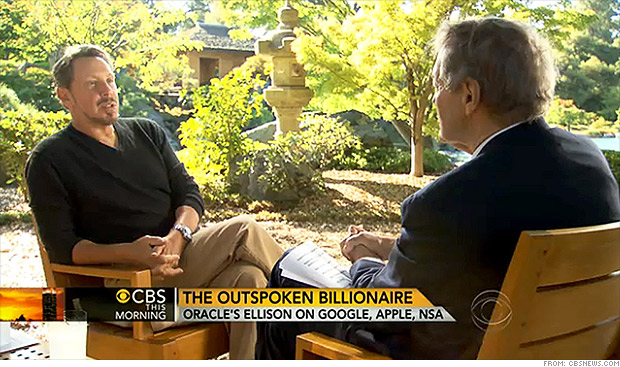
10/14/2013 15:43After Tim Cook became the CEO of Apple, we all witness the big change of Apple’s selling strategy. Many people may wonder, is there a future for Apple without Steve Jobs? In an interview recently aired on the Charlie Rose show, Larry Ellison - a very close friend of Steve, implied that there would be no chance for Apple without Steve.

“I mean, it’s been done. We saw Apple with Steve Jobs. We saw Apple without Steve Jobs. We saw Apple with Steve Jobs. Now, we’re gonna see Apple without Steve Jobs.” He explained. When Ellison described Apple with Jobs, he gestured up with his hand; without Jobs, he just put his hand down. It’s pretty clear that Ellison is referring to Apple’s founding in 1976, Jobs’ ousting in 1985, and Jobs’ return in 1997. And now, with Jobs gone, it will never be the same again. When asked about what enabled Jobs to make Apple such a successful company, he said,” He was, he was brilliant. I mean, he was our Edison. He was our Picasso. He was an incredible inventor.”
So where is Apple going next? Will Tim Cook be the next Steve Jobs? Let’s look back at the history of the revolutionary mobile phone – iPhone, and see if we can find our answers.
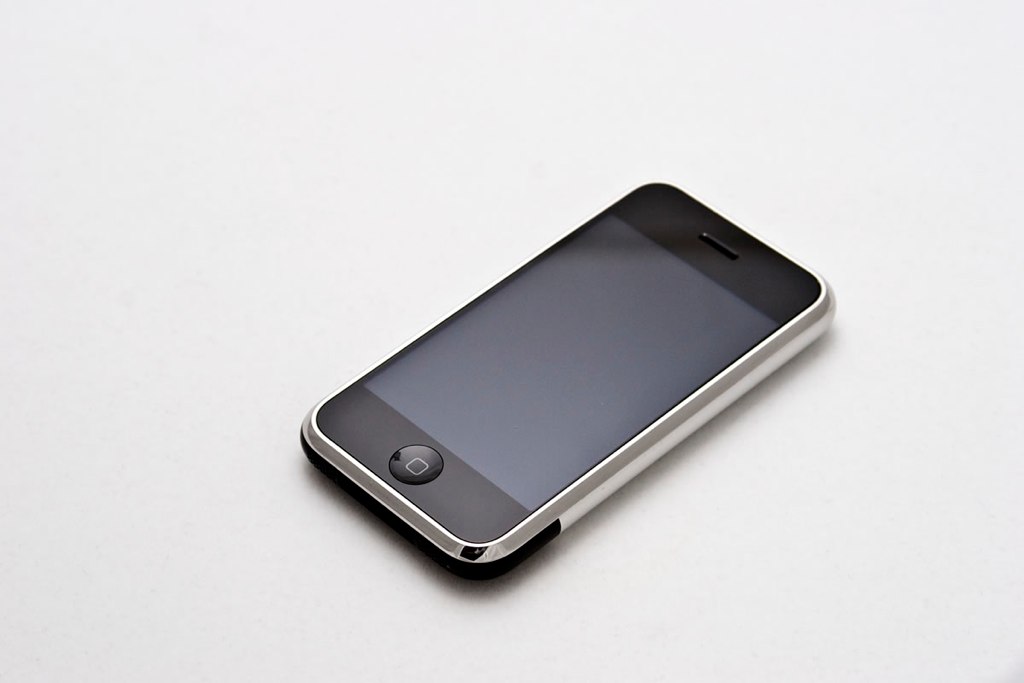
The first iPhone was released on June 29, 2007. It totally changed the mobile industry. Thousands of people flooded into Apple stores all over the world just to get their hands on the Apple’s first mobile phone.
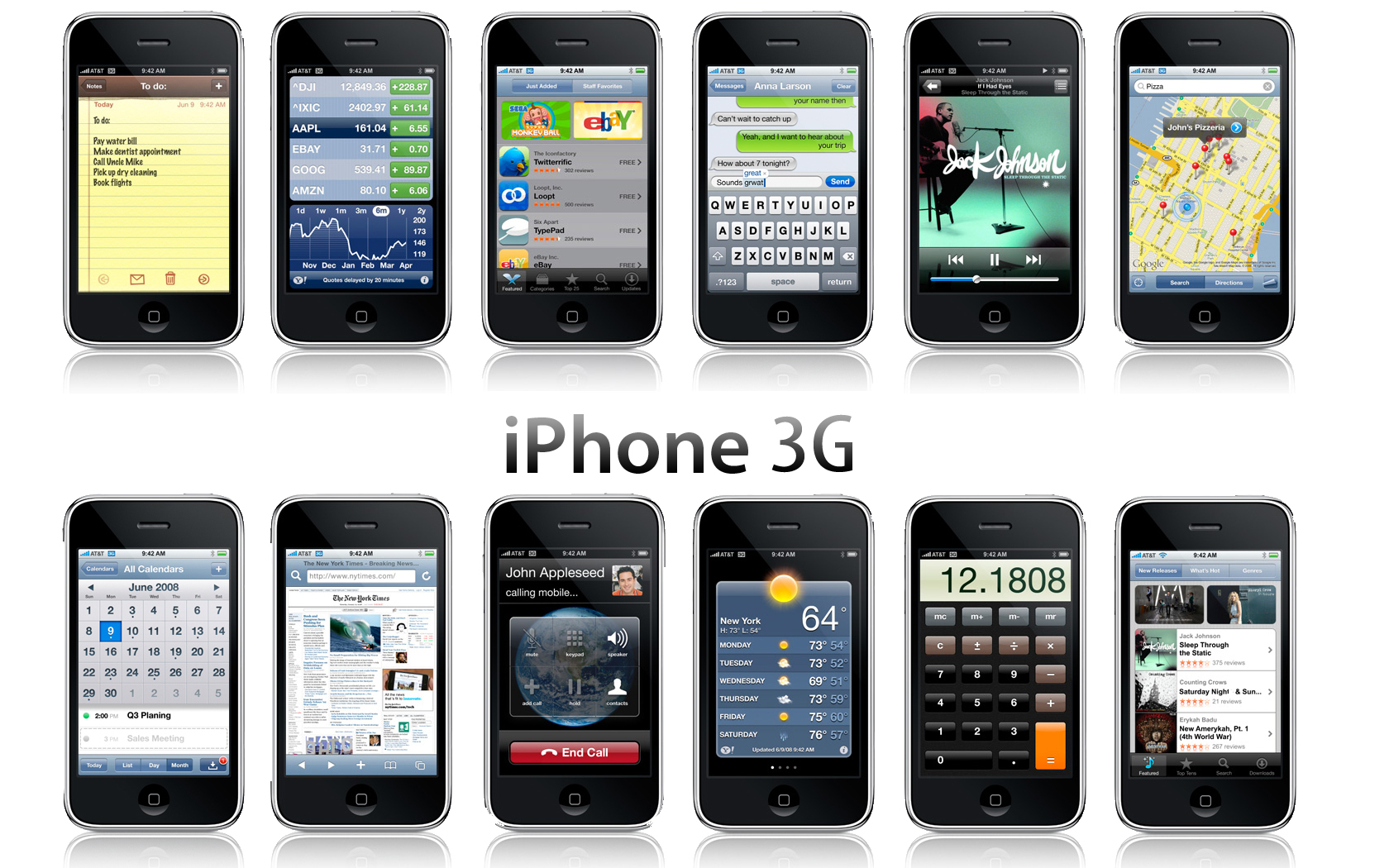
On July 11, 2008, the iPhone 3G was out on the market and once again Apple fans couldn’t wait to use the better version of iPhone. More than one million models were sold during its first two days.
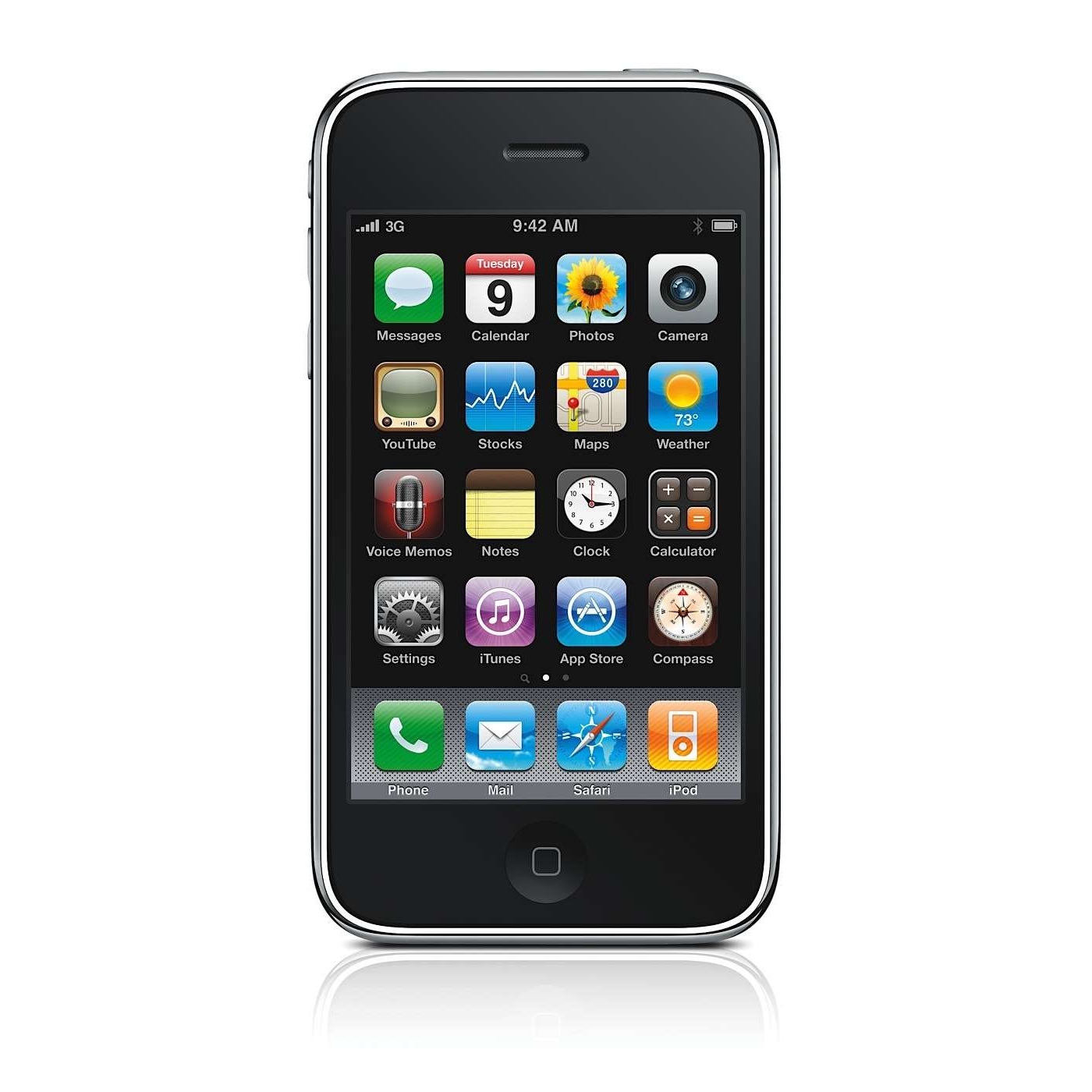
One year later, in June 2009, a faster and better version came out: the iPhone 3GS. GPS software and more advanced bluetooth options were added; even faster connection and data transfer speeds; and the first appearance of the App Store, where 10,000 apps are available for download.
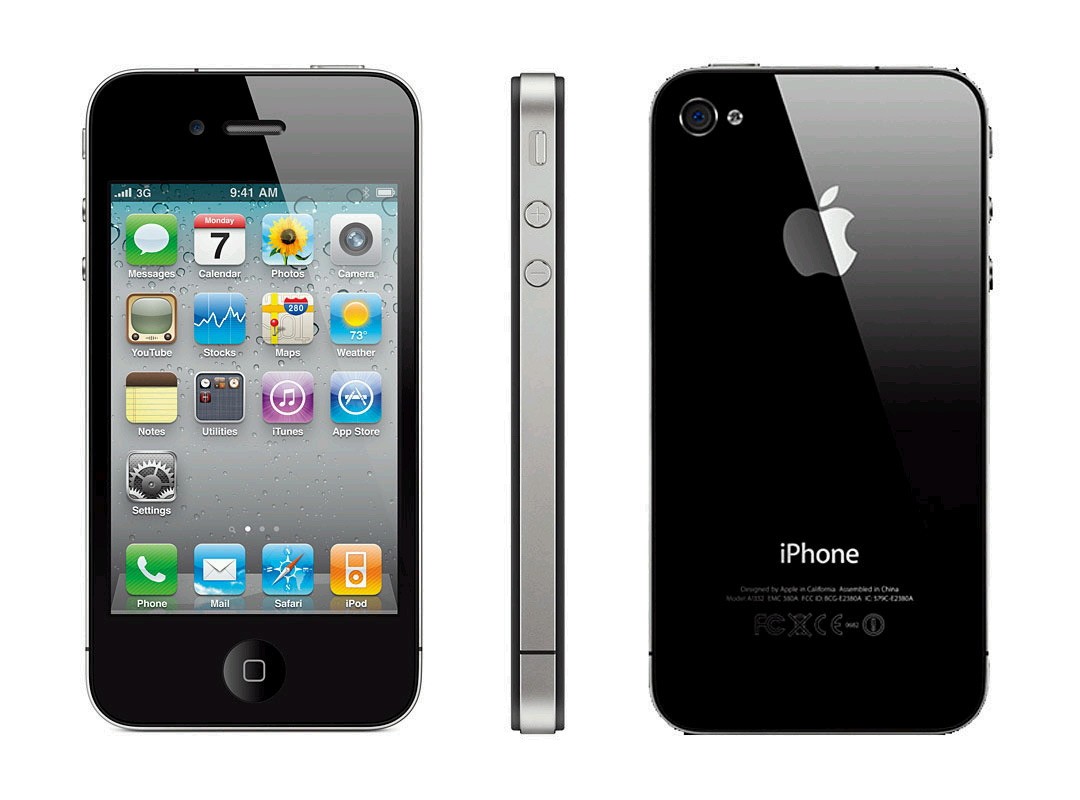
And then, the revolutionary iPhone 4 finally hit the market in June of 2010. More than 100 brand new features were added. For example, an upgraded 5 MP HD camera and video system, a larger screen, a higher resolution screen, and a 24 percent thinner body.
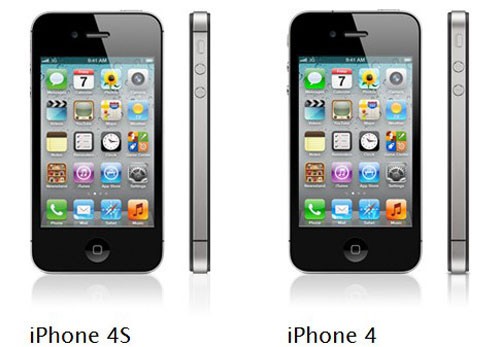
In October of 2011, the iPhone 4S was released. A double processor and an upgraded 8 MP HD camera was added, and the video capabilities were upgraded to 1080p. The very next day Steve Jobs was gone. This new iPhone was the last model that he ever saw, and the selling strategy of Apple changed in the same year.
The iPhone 5 was released in September last year. The size and shape of the phone was changed. People loved it, and it sold twenty times faster than the iPhone 4 and iPhone 4S. It’s got faster processing speed, higher front-facing camera resolution, and clearer screen resolution. No wonder it’s selling so fast.
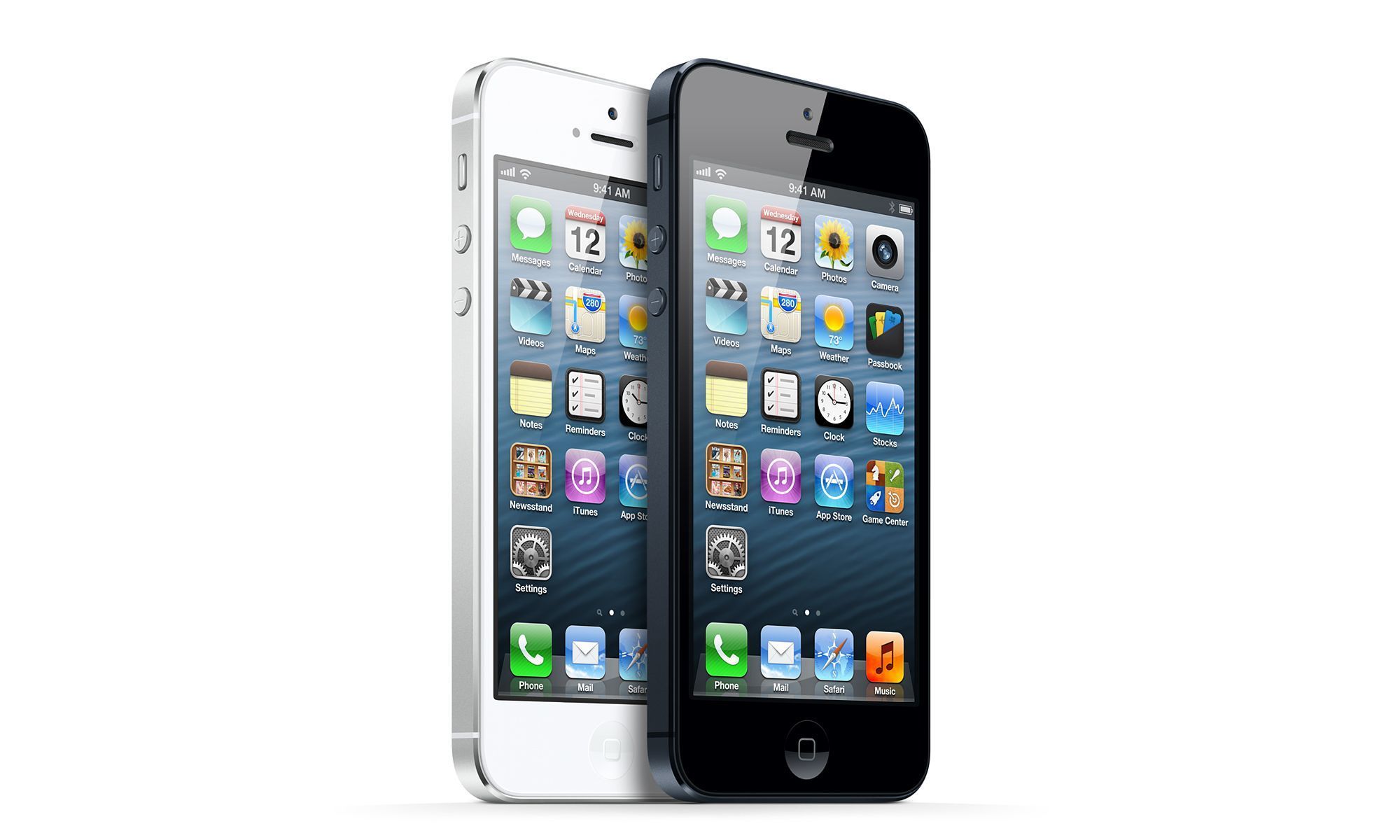
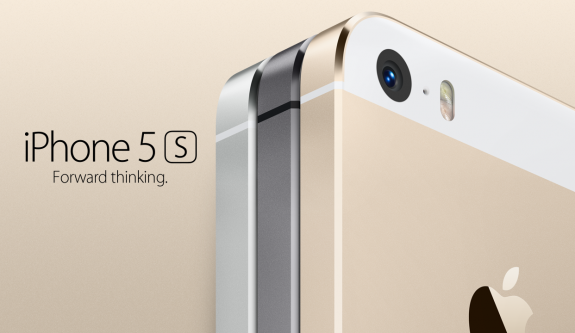
Earlier this month, the new iPhone 5s and iPhone 5c were officially released. The 5s has faster A7 processor, better camera functionality and a fingerprint identification system. The 5c is a brand new direction for Apple. It was designed with a plastic shell. All of them will come pre-installed with the official version of iOS 7, which will be released today.
So, is there going to be a new iPhone 6 and iPhone 6c coming next year? Or maybe, in 2015, we will all witness the release of iPhone 7 and iPhone 7c. With technology developing so fast, we will never know what is going to happen. Let’s just wait and see.
Now that the iPhone 5s and iPhone 5c are already on the market, you’ll be able to get them really soon. Macgo is working on the Blu-ray watching function on iOS 7. Make sure you already have the amazingMacgo Mac Blu-ray Player to enjoy Blu-ray on your Mac as well as your iPhone and iPad!
How to Use Macgo Windows Blu-ray Player as a free video player
10/12/2013 16:07Macgo Windows Blu-ray player could also works as a totally free and trustful media player to play almost all kinds of videos on your Win-based machine. With 1080p and DTS5.1 audio system, it really brings unimaginable audiovisual enjoyment. As for the operation, it is simply easy and navigable. Follow my step-by-step tutorial and you will see what I mean.
Firstly, I’d like to make a list of video formats that Macgo Windows Video Player supports: *.3g2; *.3gp; *.3gp2; *.3gpp; *.amv; *.asf; *.avi; *.bin; *.cue; *.divx; *.dv; *.flv; *.gxf; *.iso; *m1v; *.m2v; *.m2t; *.m2ts; *.m4v; *.mkv; *.mov; *.mp2; *.mp2v; *.mp4; *.mp4v; *.mpa; *.mpe; *.mpeg; *.mpeg1; *.mpeg2; *.mpeg4; *.mpg; *.mpv2; *.mts; *.mxf; *.nsv; *.nuv; *.ogg; *.ogm; *.ogv; *.ogx; *.ps; *.rec; *.rm; *.rmvb; *.tod; *.ts; *.tts; *.vob; *.vro; *.webm; *.wmv.
Step 1: Download, install and launch Macgo Windows Video Player
You can free download the latest version of Macgo Windows Video player here https://www.macblurayplayer.com/user/download/Mac_Bluray_Player_for_Windows.exe or go to download center. Click on the shortcut to run it after quick installation.

Step 2: Play back your selected video
When the main UI pops up, you will see two buttons “Open File” “Open Disc”. Press “Open File” to enter the location that your video files exist. Double click your selected file or just click the “Open” button, then the video will be played automatically.

Step 3: Control and set during the play
When your video is being played, you can control the whole playback process by clicking the buttons on the top such as “Player””Stop” “Volume Up” “Volume Down” “Forward” “Backward” in “Control” or adjust screen to “Half Size” “Double Size” “Fit to Full Screen” in “Video” to optimize the visual effect.

1). Make snapshot by simply shortcut keys “Ctrl+Alt+S” or press “Snapshot” in “Tools”

2). Choose “Float on Top” in “Windows” to keep your playback interface always appears in the very front.

3). Press “Preference” in “Tools” to customize your setting of “Language” “Theme” “Video” “Audio” and “Subtitle”.

4). Click “Windows” button then select “Adjustment”, there will be five items to set in video tuner: Brightness, Saturation, Contrast, Gamma and Hue. You can press “Reset” to change them. Click “Always apply the settings” if you like.

5). Customize your background of the player.
In addition to this, Windows video player could also play the HD Blu-ray movies. Please visit our website get more information.
How to Use Macgo Windows Blu-ray Player to Play Blu-ray ISO Files
10/09/2013 18:19Macgo Windows Blu-ray ISO Player is the best solution for your computer Blu-ray ISO playback problem considering Blu-ray has become more and more popular nowadays. Actually, it just needs several handy operations to present a fantastic movie viewing experience. Now, I’d like to show you steps in detail.
Play Blu-ray ISO on Win Step 1: Start on Macgo Windows Blu-ray Player
Download the latest version from Macgo download center or directly from herehttps://www.macblurayplayer.com/user/download/Mac_Bluray_Player.dmg
Then install it on your Windows-based computer immediately and run it by double-clicking the icon on the desktop.
Play Blu-ray ISO on Win Step 2: Load in Blu-ray ISO Files
In the center of the popped up main interface, there are two buttons “Open File” and “Open Disc”. Click on the “Open File” to access to the location where your Blu-ray ISO is then double click the movie you want to watch or click the “Open” button of the dialogue.

Play Blu-ray ISO on Win Step 3: Customize Personal Settings
Now it’s time to enjoy your beloved Blu-ray movie, at the same time you can do some basic setting changes in “Control” such as “Player””Stop” “Volume Up” “Volume Down” “Forward” “Backward”. Or adjust screen size in “Video” to “Half Size” “Double Size” “Fit to Full Screen”. Another key button is “Tool” by pressing which you could find “Preference” and AirX function.

Choose “Float on Top” in “Windows” to keep your playback interface always appears in the very front.
Play Blu-ray ISO on Win Step 4: Share your likes on SNS
The instant share function will greatly meet your need to recommend the good movies or talk about feelings during the playback just by simply clicking the “Share” button. Please don’t spare your love for our product.

OK, we are done here. If you have some other setting needs, the top menus always could help you made it. Welcome your feedbacks through contact email or Facebook.
How to use Macgo Windows Blu-ray Player to play Blu-ray Disc on Windows
09/28/2013 11:02Macgo Windows Blu-ray player is a professional Blu-ray player software, and the playback of Blu-ray on Windows is one of its multifunctional features which is simply easy. Don’t worry about the newly released Blu-ray Disc for Macgo could deal with it perfectly. Next follow my step by step tutorial to have a close look on the playing process. Just download and install this program on your PC, then let’s begin.
Play BD on Win Step 1: Turn on Macgo Windows Blu-ray Player
Don’t forget connect the external Blu-ray drive in advance with your computer (USB 2.0 or above).
After the successful installation of Macgo Blu-ray Player, double click the icon shortcut created on your desktop to switch it on.
Play BD on Win Step 2: Play back the BD
The main interface of this player will pop up, followed by another registration dialogue with 3 prompt options. Select “cancel” to continue trying. By the way, if your version is not the latest, an “Auto update” message may appear.


Insert your selected Blu-ray Disc into Blu-ray drive then BD player will read and load it automatically so please wait. Before the official Blu-ray menu verison release, there still a rough list appears on the left side though which you can make some changes or selection according to your preference. Press “Play Movie” to go directly.

Play BD on Win Step 3: Customize Personal Settings
You can do some basic setting changes in “Control” such as “Player””Stop” “Volume Up” “Volume Down” “Forward” “Backward”. Or adjust screen size in “Video”. Another key button is “Tool” by pressing which you could find “Preference” and AirX function.
Choose “Float on Top” in “Windows” to keep your playback interface always appears in the very front.
Play BD on Win Step 4: Share your likes on SNS
The instant share function will greatly meet your need to recommend the good movies or talk about feelings during the playback just by simply clicking the “Share” button. Please don’t spare your love for our product.

We have finished now. Obviously it is a pretty easy process. If you want to get more timely updates and discounts of Macgo Windows Blu-ray Player, please like us on Facebook.