
Blog
New OS X Yosemite is Coming with Clarity, but Also Utility
06/05/2014 14:38Apple just completed their 2014 keynote address at WWDC which was hold during June 2-6, 2014, San Francisco and introduced a number of new features in both OS X and iOS. Considering the amazing iOS 7 released last year which has already become the most welcomed Apple mobile operating system, there is no doubt that Apple introduced flat design into Mac OS X, though the current version is still in use of the classic Quasiphysical style interface.

Although OS X 10.9 has just received an updated not long ago, the new released OS X 10.10 Yosemite has acquired a redesign from the underlying code to user interface. We can see clearly that in OS X 10.10 the window has sharp edges, the system icons are more cleaner and concise, plusing the transparent gradient effect as well as the more white space than current version, all of these make it more “flat”, but never short of strong practicality.
Besides, the flat design, translucent panels, and lack of gradients and textures of iOS 7 can be found throughout OS X 10.10, lending a much more modern look to the desktop operating system. App icons feature flatter designs, the dock and windows of apps have sharper corners, and a new system font is meant to improve overall readability.
Another big improvement is the search tool – Spotlight, which directly displayed in the middle of the screen at Yosemite system. You can search anything you want like contacts, applications, map, or even movie and something want to eat with the improved Spotlight, then many search results can be directly opened or help transforming results, such as miles search will automatically be converted to km.

In Yosemite system, iCloud Drive was also added which is Apple’s own cloud storage service and supports cross-platform store. Apple says that all iCloud Drive files will sync across Mac computers and even Windows PCs right now. In addition to new design, the built-in Mail Mail has also gained the ability to edit attached images with simple text and arrow overlays. Another new feature is MailDrop. It let users attach large files to emails with their iCloud accounts, bypassing the attachment size restrictions many email services have.

Apple’s Safari browser has undegone a significant revamp, with a cleaner design. There is a new tab view that shows thumbnails of all open tabs. The search bar of new Safari is similar to the Google browser which can directly display the search results, including the collection of web sites. After strengthened WebGL CSS and HTML 5, the performance is more powerful than Firefox and Chrome. Apple says that Safari now runs JavaScript code faster than any other browser on the market. Besides, you may watch 1080P videos with extended 2 hours after upgrade. Almost forget to mention, Safari also supports MarkUp feature meanwhile, through which you can edit and share the pictures you saw directly.

The theme of Continuity in OS X is greatest displayed in its new abilities to interact with iOS devices. AirDrop between OS X and iOS is finally supported. It works like this: when Mac and iOS devices are in all similar scope, there will appear an icon to click and view the Mac file on the lower left corner of iOS devices. You can also transfer images and other data between mobile devices and their desktop without using a cable.

The new Yosemite system was added Instant Hotspot feature for hot spot share. Now your iPhone can automatically becomes the hotspot for Mac computers to connect without any operation on iPhone. Speak of the interconnection with iOS, you could view the Text Messages on the new Yosemite, as well as check the iMessage, phone records, emails, even the phone call function be moved to Mac, taking advantage of synchronization, direct dialing or answering the telephone whether iPhone is by your side.
Along with new graphics schemes, new type treatments, new icons, and new effects, OS X 10.10 Yosemite is more of a visual refresh than a complete overhaul of the operating system. Yosemite also has several features that substantially improve the way the operating system works. We can say that the biggest improvement for OS X is the better integration and interaction with Apple’s mobile devices, which reminds me another great program – Macgo Mac OS X Blu-ray Player. It not only makes up the defect that all Macs don’t ship with the capability to play Blu-ray, but also support the Blu-ray movie playback on Apple iOS devices through AirX feature. It is the trend, so is the usage of this amazing Yosemite Blu-ray player software.
How to set Macgo Mac Blu-ray Player as default player
01/10/2014 14:23A new function called Auto Play has just been added to Macgo Mac Blu-ray Player, which means when you insert a disc into your Blu-ray drive, the player will automatically start and play. Sure it will save you some time. In order to make this whole process smooth, you better set Mac Blu-ray Player as default player on your Mac. Now I’ll tell you how to do it.
Step 1: Free download Mac Blu-ray Menu Player and install it at once

There will be watermark on your screen if you play Blu-ray with the trial version. Only 39.95 dollars for the full version of Mac Blu-ray Menu Player for now, please buy Mac Blu-ray Player with discount.
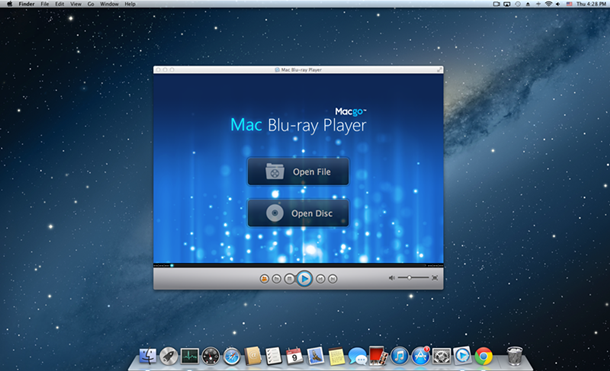
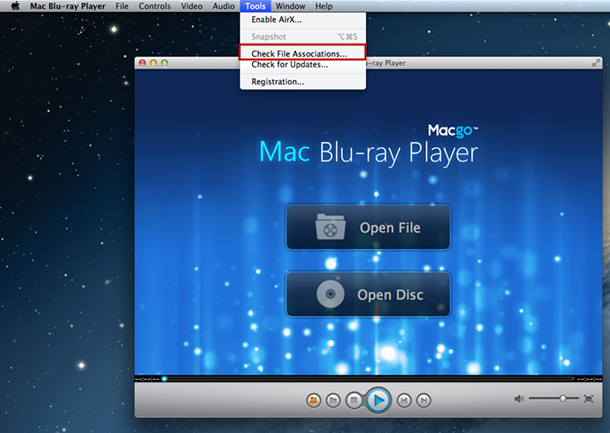
Step 2: Click “Check File Associations” under “Tools”
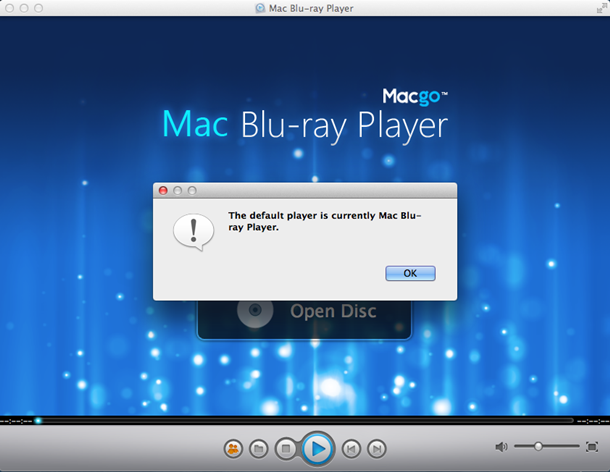
One click and Macgo Mac Blu-ray Player will be your default player. Click “OK” to continue.
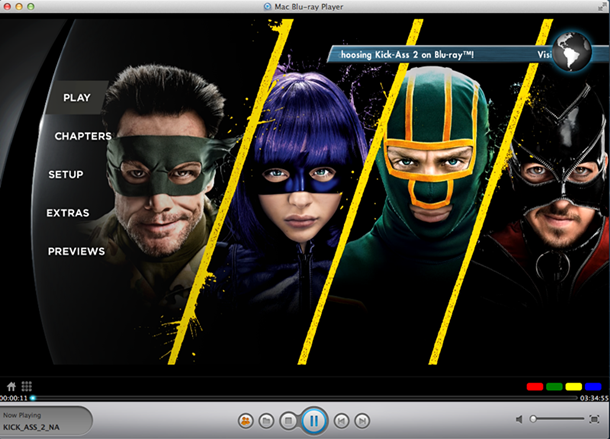
Step 3: Insert a BD and enjoy your movie
Right after you’re done with step 2, try auto playing a Blu-ray movie with this Mac Blu-ray Player software. Let the player do the work for you. And don’t forget to experience the uniqueBlu-ray Menu Mode of it, which allows you full access to native menus of many Blu-ray discs.
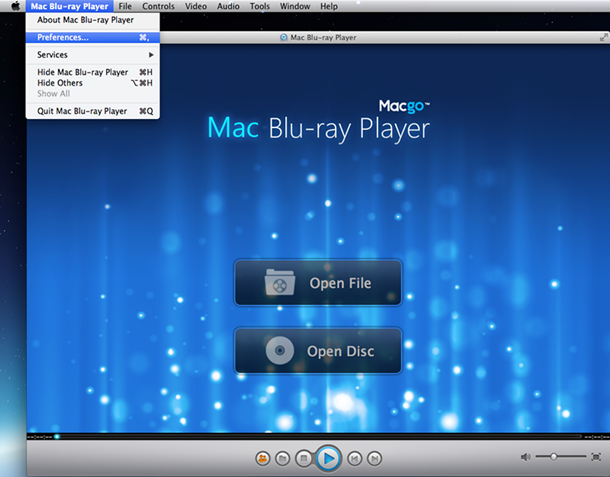
If you want to cancel Auto Play, it’s also quite easy to do. First, click “Preferences” under “Mac Blu-ray Player”.
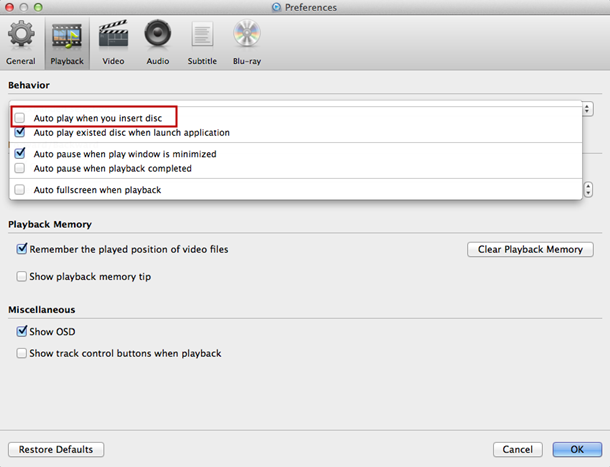
And then uncheck “Auto play when you insert disc” and click “OK”, and then Macgo Mac Blu-ray Player won’t auto play when you insert a disc.
That’s everything about setting Macgo Mac Blu-ray Player as default player. Pretty easy, huh? Hope you enjoy your Blu-ray discs with this new Auto Play function.
Macgo Window Blu-ray Player – Free AAC player software
01/09/2014 18:29Advanced Audio Coding (AAC) is a standardized, lossy compression and encoding scheme specially designed for digital audio. As the successor of the MP3 format, AAC adopted the new coding algorithm to be more efficient and higher "cost-effective". Generally it achieves better sound quality than MP3 at similar bit rates. But products that support AAC are relatively less due to the patent royalty. That’s why we introduce Macgo free AAC player.
Windows Blu-ray Player which could be used as a free AAC Player on Windows is a universal media player supporting all the video and audio formats including the die-hard Blu-ray. Now, let’s see the whole AAC playback on this player.
Step One: Free download Windows Blu-ray Player
Go to MacGo official website to free download the player and install it on your computer.
Step Two: Playback of AAC file
Open Windows Blu-ray Player and select “Cancel” in the popped up registration dialogue for it is a free AAC player. Now, there are two options in the main UI: “Open File” and “Open Disc”.

Click “Open file” to choose the AAC document you want to play then start your playing.

Otherwise, click “Open Disc” to begin your Blu-ray Disc or DVD enjoyment. Remember connect a BD drive with your computer then.
Step Three: Optional settings
Macgo Blu-ray media player is a kind of multifunctional media tool, and at the same time it has some humanized design to realize a more humanized experience. So you may change some video or audio setting during process to meet your need.
1). Make snapshot by simply shortcut keys “Ctrl+Alt+S” or press “Snapshot” in “Tools”.

2). Click "Tools" button and select "Adjustments". There are five sections to be set in video tuner: brightness, saturation, contrast, gamma, and hue. If you want to reset them, you can press "Reset" button. Moreover, if you want to keep the settings, you can check the "Always apply the settings" on the left bottom.

3). If you want to adjust aspect ratio, find it in "Video" on the tool menu.

4). You may adjust screen size by shortcut keys or through the options in "Video" on the tool menu.

Half size: Command+1
Normal size: Command+2
Double size: Command+3
Fit to the screen: Command+4
Now it’s time to listen to your high-quality AAC audio on your computer.
How to Auto Update Macgo Mac Blu-ray Player
01/06/2014 19:11Macgo Mac Blu-ray Player’s brand new Auto Update function was just added to the latest version. Have you tried it yet? With this function, the player will do all the update work for you. A lot of you may wonder, how does this thing work? Now let me walk you through the whole process. It’s really easy to operate.
Step 1: Free download Macgo Mac Blu-ray Player and install it
A watermark will show when you play Blu-ray with the trial version. Now the full version is on sale, for only $39.95. Please buy Macgo Mac Blu-ray Player with discount.
Step 2: Run Macgo Mac Blu-ray Player and open “Check for Updates” under “Tools”

Please be noted, this function only can be used on old versions of Macgo Mac Blu-ray Player. There should be a latest version to update.
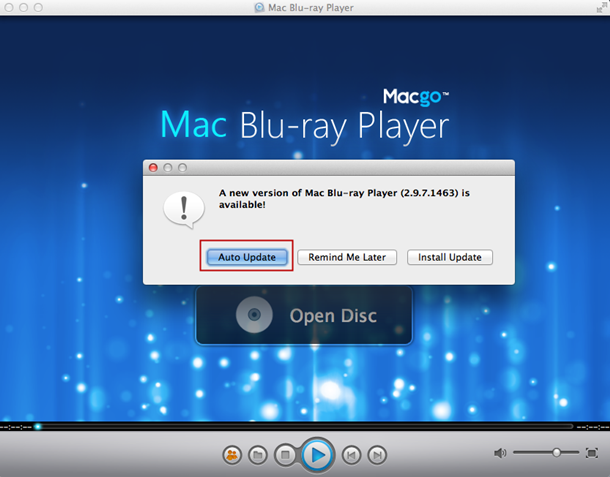
Then a pop-up window will show up. Click the “Auto Update” button. And then the Auto Update will begin.
Step 3: Wait for it to complete and relaunch
Wait when Macgo Mac Blu-ray Player’s Auto Updating.
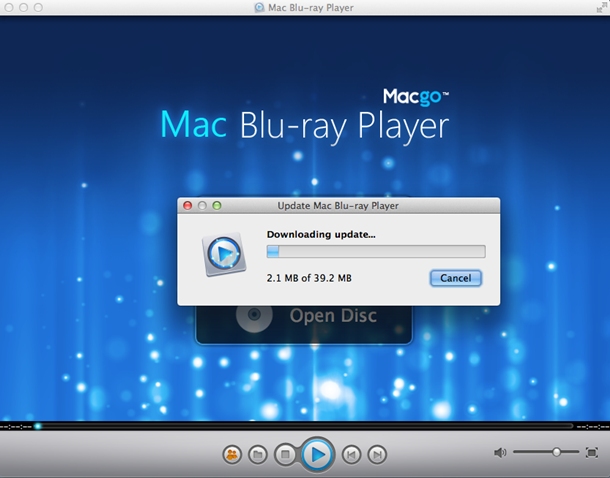
Click “Install and Relaunch” when it’s finished.
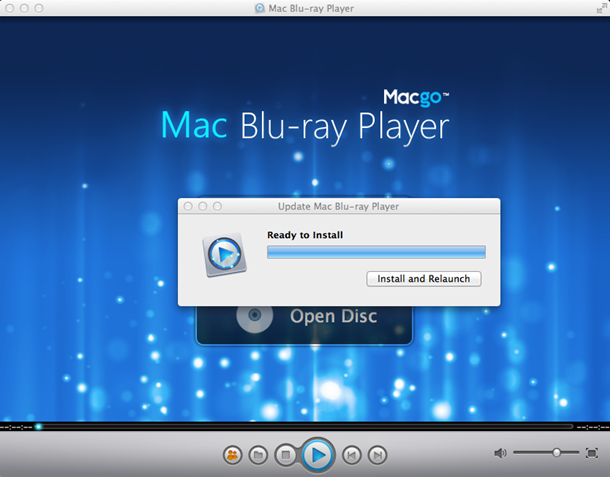
Then you’ll get the latest version of Macgo Mac Blu-ray Player.
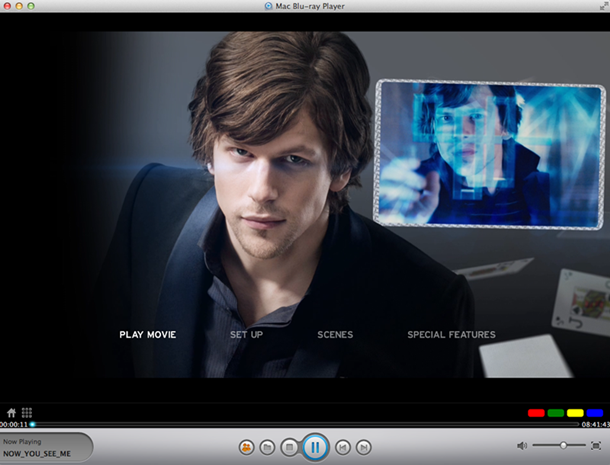
Now you can freely enjoy Blu-ray with the latest version of Macgo Mac Blu-ray Player.
Note: There should be a later version to update; hence Auto Update can’t be used on the latest version of Macgo Mac Blu-ray Player.
Macgo is ready for the upcoming films of Christmas
12/13/2013 18:33As you all know, the annual Christmas is coming soon, December 25 is just 2 weeks away. Do you have any plans to celebrate this big holiday? At this time of the year, the audience is always waiting for the wonderful Christmas movie dinner. This year’s Christmas season, what films are prepared for the audience? Let’s review a few of the most eagerly awaited films.

The most powerful cast is definitely “Anchorman 2: The Legend Continues” which is the sequel to the 2004 film Anchorman: The Legend of Ron Burgundy. This comedy film will be released on December 18, 2013. Directed by Adam McKay, and features Ferrell, Steve Carell, Paul Rudd, David Koechner and Christina Applegate will reprise their roles from the first film. Everyone gives in an absolutely hilarious and stellar performance in this film and it tells a story about Ron Burgundy, San Diego’s top rated newsman, with the 70s behind him, returns to take New York’s first 24-hour news channel by storm.

Maybe after you seeing the film, you will look forward to the arrival of the third. Will Ferrell once spoke about the possibility of a third Anchorman film: “I’m sure they would, But I don’t know. We just want to see what happens with this one and we’ll sit down and assess all of that. Right now, we’re just enjoying this journey.” Steve Carell said “We’ll see how this one goes,” and “If people like it, maybe 10 years from now we’ll do a third.”
And the next “Walking with Dinosaurs 3D” will meet the public, which is directed by Barry Cook, Neil Nightingale, with John Leguizamo, Justin Long, Tiya Sircar, Skyler Stone’s voice. See and feel what it was like when dinosaurs ruled the Earth, in a story where an underdog dino triumphs to become a hero for the ages. For the first time in movie history, audiences will truly see and feel what it was like when dinosaurs ruled the Earth. “Walking with Dinosaurs” is the ultimate immersive experience, utilizing state of the art 3D to put audiences in the middle of a thrilling and epic prehistoric world.

Then we will see “American Hustle”. Directed by David O. Russell, with Christian Bale, Amy Adams, Bradley Cooper, Jennifer Lawrence, it tells the story of brilliant con man Irving Rosenfeld, who along with his equally cunning and seductive British partner Sydney Prosser is forced to work for a wild FBI agent Richie DiMaso. It is scheduled to come out on December 20, 2013.

The New Year is coming soon after Christmas, and more Hollywood blockbusters will bring you great joy, such as The Wolf of Wall Street, The Secret Life of Walter Mitty, Lone Survivor etc. At the same time, you can also watch some wonderful Blu-ray movies you may have missed on working time, such as Man of Steel, The Hunger Games: Catching Fire, Fast & Furious 6, Now You See Me, Thor: The Dark World , The Great Gatsby and so on. Those are all the Top 10 Movies of 2013 which could be brought about through Macgo Mac Blu-ray Player.

In other words, it may also create a beautiful moment that all your family stay together at home to enjoy a warm past reunion BD movie. Besides, Macgo Mac Blu-ray Player has been ready to welcome the big festival with the new released Blu-ray new menu. You will be absolutely surprised by its fantastic features and the forever memory it delivers.
How to use Blu-ray player on Windows 7
12/12/2013 11:44Macgo Windows 7 Blu-ray player is the best choice for you to enjoy a Blu-ray movie on your Windows 7-based computer. As we all know that Windows 7 is another powerful operating system after Windows XP which has already been widely used now, especially the Windows 7 Ultimate. Considering Blu-ray is not a supportive format on Windows, Macgo released this player to cover the shortage and it turns out to be a meaningful step.
Next tutorial is about how to play DVD/Blu-ray Disc or local files with it on your PC which you may want to have a look.
Step 1: Free download and install Windows 7 Blu-ray player
You can easily download the latest version of Macgo Windows Blu-ray Player at Macgo official website, and then install it on your Windows intuitively. After installation completed, just double click on its desktop shortcut to launch this program.

Step 2: Start on Macgo Windows Blu-ray player
An interface as well as a registration dialogue suggesting 3 options will pop up once you launch the Windows 7 Blu-ray player. Select "Cancel" and the main interface will display there.

Play Blu-ray/DVD Disc
Connect a Blu-ray drive which has a 2.0 or above USB with your computer or laptop if you want to play a Blu-ray/DVD Disc. (Blu-ray drive is compatible with DVD Disc) Insert your selected Disc into drive and the player will load in automatically.

Play Blu-ray/DVD folders or ISO image files
Just click on the button “Open File” on the main interface of the Windows Blu-ray player. You won’t need the drive any more. After entering the location where your folders or files is, select one to open it. Another control to open a file is clicking on the second button on the central bottom.

At the very beginning of completed loading, you will see five options on the left side through which you could select exact chapter or title according to your need. Audio and subtitles can also be changed here.
Step 3: Control and set during playback
You may stop/pause the play, resume play, volume up, volume down, mute(right bottom icon are also available), fast backward, and fast forward through the option "Control".

You want to view in a full screen or in other size? This will be achieved by clicking on “Video” or click the button in the right corner.
Customize your background of Windows 7 Blu-ray player or set “Float on Top” in “Windows”.
Step 4: Share your Windows 7 Blu-ray player information
Share your watching movie to friends on Facebook or Twitter by clicking the first button of the central bottom control. At the same time tell them your love of our player.

Please like us on Facebook, so you can get more timely updates and discount information.
How to play Blu-ray Disc on Windows 8 directly
12/10/2013 17:46Windows 8 Blu-ray Player is urgently needed since it doesn’t playback Blu-ray natively. But the more widespread trend and great Blu-ray movie enjoyment need forced us to make a choice.
Windows 8 is a new generation of operating system after Windows 7 which was launched by Microsoft Company on October 26, 2012. As a revolutionary change of operation system, Windows 8 has a bigger battery capacity, faster startup times and a smaller memory footprint. Besides, all the software and hardware that Win 7 supports are also available on Windows 8.

What we talk about today is a universal media player equipped with all media formats capability, especially for Blu-ray and DVD which Windows 8 itself disabled. That is Macgo Windows 8 Blu-ray Player.
Now let’s take the “The Croods” for example to explore how it works to play Blu-ray movie.
Step 1: Download and install
Free download this Blu-ray Player software directly from herehttps://www.macblurayplayer.com/user/download/Mac_Bluray_Player_for_Windows.exe and install it on your computer according to the direction.
Step 2: Connect the Blu-ray drive
Prepare an external Blu-ray drive which is compatible with your computer and connect it with your computer.
Step 3: Insert and play your movie
Open up Windows Blu-ray media player, and you will see two options in the interface: “Open File” and “Open Disc”. The first one will be used if you want to play other media files. Insert the Blu-ray Disc into drive and it will be automatically loaded in. If you want to change this default, find “Preference” in “Tools”. You may find this setting in “Playback” option.

Step 4: Customize your setting
When the movie is ready, you may press “Play Movie” to enter the movie directly, or you can press “Audio” or “Subtitle” to select your language. Or select specific chapter and title in this simple menu.
During the playback, you could still change some default to fit yourself.
Preference

Float on top

Display the Playlist and reselect to disable

Screen size or "Full screen" in the right bottom


Step 5: Share to your friends on Facebook and Twitter

Let’s Welcome the Apple Black Friday Sales Promotion
11/26/2013 16:09
According to some news on November 25, with the coming of Black Friday, each big businesses are about to muster all its strength to promote on that day through a variety of activities. Apple is no exception, of course. It is said that in order to make employees have more rest time, previously Cook is against the plan to open their doors on Black Friday (November 29) and Thanksgiving. Physical stores are closed that day, but online store business is still on as usual.
At present in Apple's official website, the page for Black Friday Sales Promotion is online setting the sale time throughout November 29 (Friday) all day. By then consumers can buy deals in Apple's online store. But Apple hasn’t revealed what products will enter the sales promotion yet until now. Last year, MacBook, iPad and iPod series of products had been on sale.
Now on the home page of Apple online store, users can see Black Friday link at the bottom through which you can find which Apple store will be on business that day, thereby go directly to purchase. If you are the one who wants to take this opportunity, hurry up to get ready!
While on some special holidays, it is not enough to just stop at these crazy Apple product shopping. Or maybe it is a reunion time for a family to enjoy a wonderful movie together. By now you must need a brilliant player for your new purchased Mac computer. As I know, MacGo is just holding a promotion activity on its official website paralleled Apple for its hot product Mac Blu-ray Player, the world’s first Blu-ray player software for Mac, also the only one to get the licensed recognition of Blu-ray Organization. We can absolutely say it is Blu-ray media player that gives Blu-ray a new life on both Mac and Windows, at the same time, brings a new HD movie era for all users.


Mac Blu-ray Player could work normally with whichever Blu-ray Disc you arbitrarily picked up not only on the common used Mac OS X and Windows OS, but also the latest Mac OS 10.9 and Windows 8.1. Even the most nerve-wracking Blu-ray menu problem has been partially conquered in new released 2.9 series Mac Blu-ray Menu Player versions and will be better improved in the follow ups. So let’s expect more surprise Apple and MacGo might bring to us on the special shopping season.
How to Play Blu-ray Quick on Mac
11/13/2013 16:42Some of you may wonder, how to play Blu-ray real quick on Mac? Well, you have to try the new version of Mac Blu-ray Player. In this new version of Mac Blu-ray Player, it's known as "Quick Play Mode". It perfectly supports all kinds of Blu-ray Discs. And the super fast loading speed will amaze you. This tutorial will tell you how to play Blu-ray quick on Mac.
Step 1: Free Download Mac Blu-ray Menu Player and install it at once
Some of you already know there’s watermark on the screen when you play Blu-ray with the trial version. If you want it removed, please buy Mac Blu-ray Player with discount.
Step 2: Run Mac Blu-ray Menu Player and insert a Blu-ray disc
The default play mode is Quick Play Mode. So you don’t have to do a thing before you insert a disc. It will be loaded immediately. I have to say the loading speed is really fast. Then a menu will show up. It’s not the Blu-ray menu that comes with the disc; it’s something that developed by Macgo team.
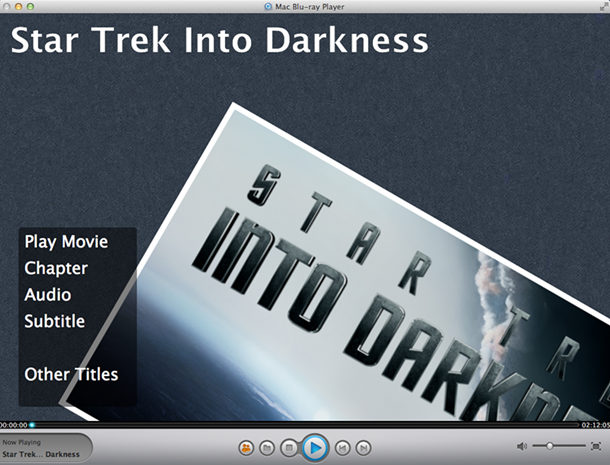
However, if you somehow change it to the Blu-ray Menu Mode and wonder how to change it back, please click ”Preferences” under ”Mac Blu-ray Player”. You’ll see a “Blu-ray” option. That’s the place you can change the play mode. Remember to click “OK” after you change it.
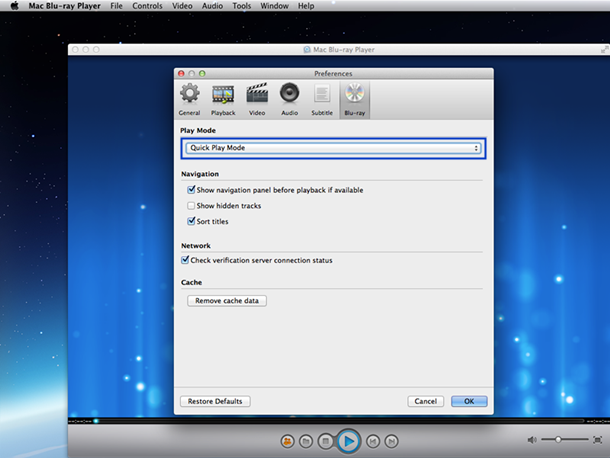
If you would like to experience Blu-ray menu, please use Blu-ray Menu Mode. Click here to see Blu-ray Menu Mode’s tutorial.
Step 3: Settings
Before you play the movie, choose the audio and subtitle you like, or which title or chapter you want to watch. Or you can play it directly.
Step 4: Enjoy your movie
After all the settings, you can finally sit and watch your Blu-ray movie comfortably. Isn’t this easy? If you want your Blu-ray played real quick, you have to try this Quick Play Mode of Mac Blu-ray Player.
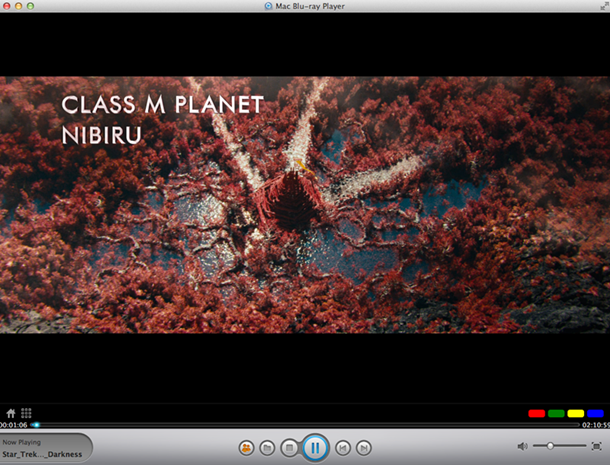
Now you must know how to play Blu-ray quick on Mac.
Learn about the new Blu-ray menu feature of Mac Blu-ray Player.
Play Blu-ray Menu on Mac with Mac Blu-ray Player
11/11/2013 17:29This should be a quite surprising moment for all Blu-ray fans, because Mac Blu-ray Menu Player’s coming! Version 2.9.0 of Mac Blu-ray Player has finally arrived! Macgo concentrates on developing the best Blu-ray player on Mac and Windows, and they keep challenging themselves every day. After knowing the demand of Blu-ray menu, they work really hard on it. And here we are ready to taste Blu-ray menu fruit for the first time! I know a lot of you have waited for a long time, so let’s cut to the chase and see how this brand new Mac Blu-ray Menu Player works!
There are only a few steps before you can freely use Mac Blu-ray Menu Player:
Step 1: Free download Mac Blu-ray Menu Player and install it at once
There will be watermark on your screen if you play Blu-ray with the trial version. Only 39.95 dollars for the full version of Mac Blu-ray Menu Player for now, please buy Mac Blu-ray Player with discount.
Step 2: Run Mac Blu-ray Menu Player and Open “Preferences” under “Mac Blu-ray Player”
After you open “Preferences”, click on the “Blu-ray” option. There are two play modes you can choose. Simply switch it to Blu-ray Menu Mode and click “OK”. The default play mode is Quick Play Mode, so if you want to use Blu-ray Menu Mode, please always set before you open a Blu-ray disc. There are some disc preferences that can be set under “Blu-ray”, like, countries and regions, the language of subtitle, audio and menu.
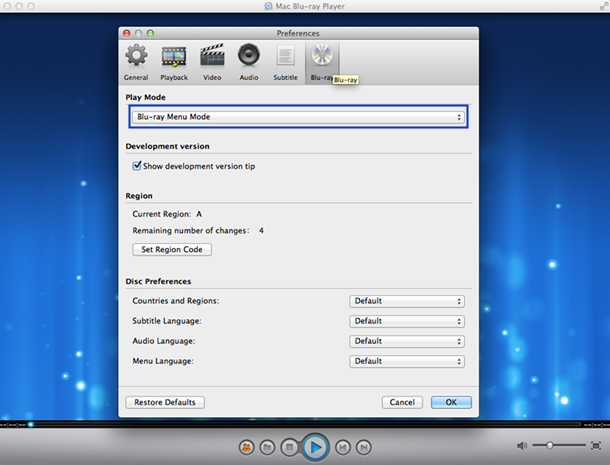
Step 3: Play Blu-ray Menu on Mac
After you insert the disc, it will be loaded automatically. If the disc is already in your Blu-ray drive, and you stop the movie to change the play mode, you can always click “Open Disc” to reopen the disc after the settings are done. And please remember, your disc must be loaded after you choose the Blu-ray Menu Mode. After the loading process, a pop-up window will show up. Click “Continue” to experience Blu-ray menu in advance. Otherwise, please choose Quick Play Mode.
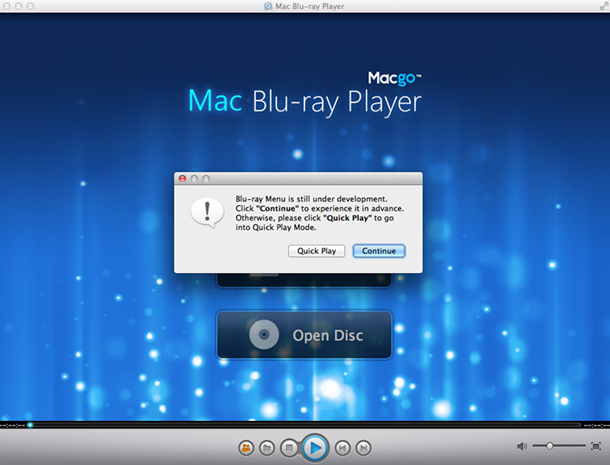
After a while, the Blu-ray menu will appear. It’s perfectly normal if you have to wait for a bit. If you think the process’s taking too long, you can always choose the Quick Play Mode. Blu-ray Menu Mode is still under development, so it’s still yet to be optimized. If the disc you’re playing won’t respond in Blu-ray Menu Mode, please choose Quick Play Mode.
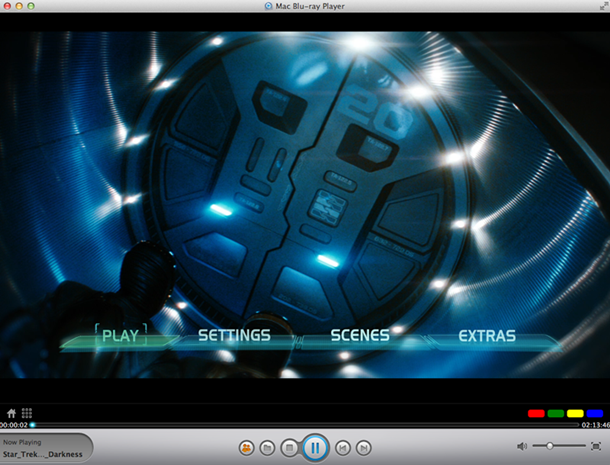
Step 4: Hit play and enjoy your Blu-ray movie
After the disc’s loaded, Blu-ray menu will be controlled by your keyboard. For now you can use Blu-ray menu only via keyboard controls. On Blu-ray menu you can choose play the movie directly, select scenes, or set audio and subtitles and other stuff. By simply pressing “Enter” on your keyboard, the movie will be played at once. Then you can watch your Blu-ray Disc freely and comfortably.
That’s all you need to know to use the new Blu-ray menu feature of Mac Blu-ray Player.
Note: Blu-ray Menu Mode is still under development, some of the Blu-ray Discs may not be supported yet. If the Blu-ray menu of your disc can not be supported, please choose Quick Play Mode.